Copying a single cell:
Select a cell and then use the key combination 'Ctrl + C' or the 'Copy' () - button to copy the cell. Select the cell in which the text has to be pasted, and use the keyboard shortcut 'Ctrl + V' or the 'Paste' () - button to paste the cell.
To copy the cell:
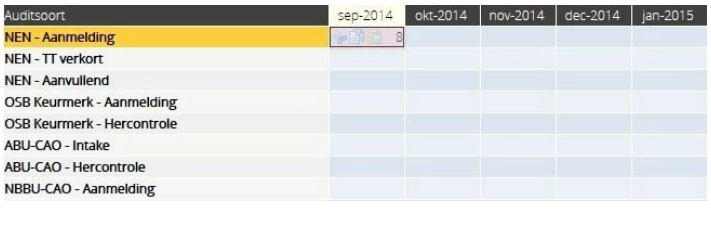
After copying the cell:
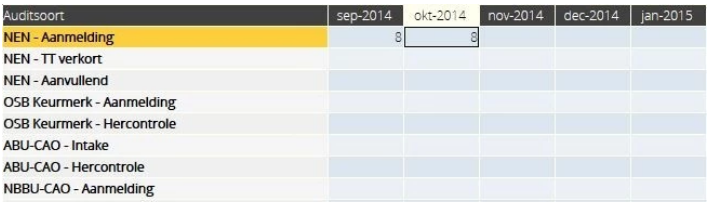
Copying a single cell to multiple cells:
Select a cell and then use the key combination 'Ctrl + C' or the 'Copy' ()-button to copy the cell. Then select the area to which the cell should be copied, by clicking in a corner of this area and then dragging the mouse to the opposite corner of the desired area. Then use the key combination 'Ctrl + V' or the 'Paste' ()-button to paste the cell.
To copy the cell - selection area of 5x4:
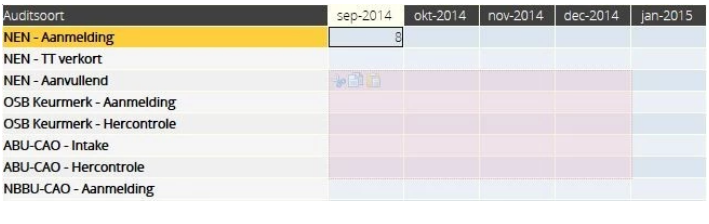
After copying the cell:
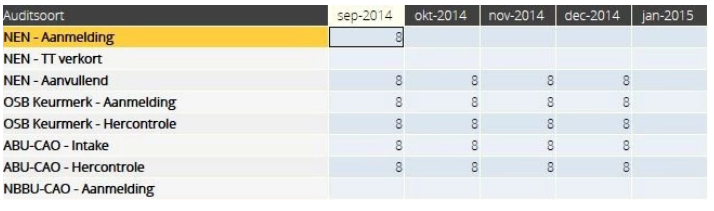
Copying multiple cells to multiple cells:
Select the desired range of the cells that has to be copied, then use the key combination 'Ctrl + C' or the 'Copy' ()-button to copy the cell.
Then select the area to which the cells are to be copied, this does not have to correspond exactly to the original range in terms of size. Then use the key combination 'Ctrl + V' or the 'Paste'()-button to paste the cells.
To copy the cells - selection area of 2x3:
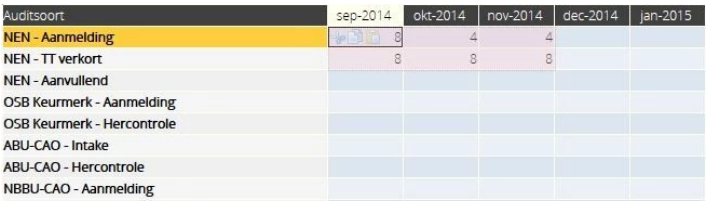
During the copying of the cells:
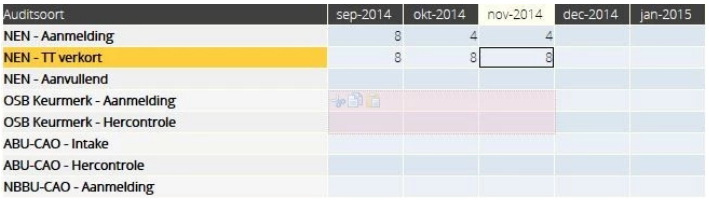
After copying the cells:
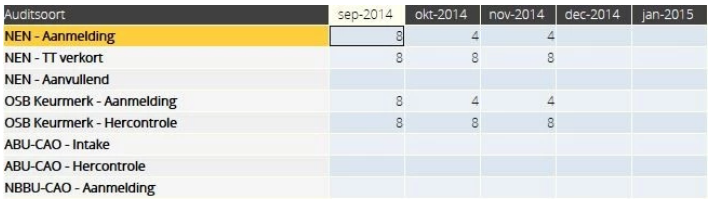
Be careful when copying multiple cells to a different dimension. In most cases, the copied area retains its original range, such as when the target area is of equal size, when the area is larger than the original range, and when only one cell is selected.
When an area is selected that is between one cell and the original range in size, the copy is adapted to this area.
Copying data from Excel to Anago and vice versa:
Data can also be copied to Anago from an Excel file and vice versa. This works in the same way as explained above.