It is possible to print and/or save the entire view as a PDF-file or an Excel-file. You can also print and/or save a specific table or graph of a view separately. Both options are explained here.
The toolbar is located at the top left of the view. When the export icon () is clicked, a dialog will be opened so that the entire screen can be exported.
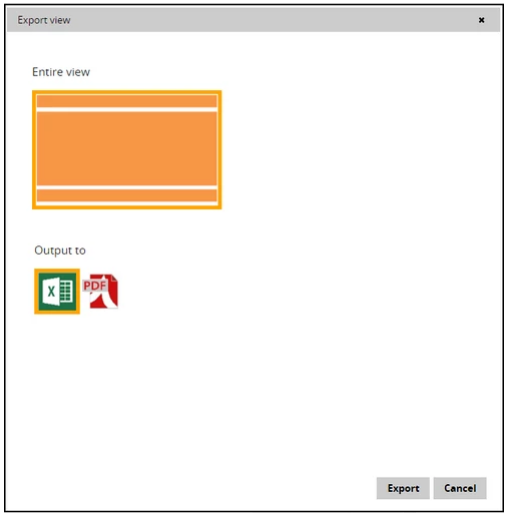
As shown in the image above, you can choose to export to Excel, or export the view to a PDF file. These options will be explained below.
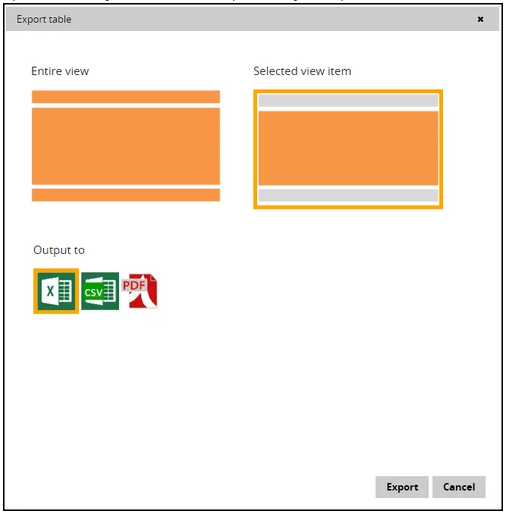
As shown in the image above, you can choose to export to Excel, a CSV file or export the view to a PDF file. These options will be explained below.
Exporting to Excel or CVS (comma seperated file)
Exporting to Excel is possible with the button: and exporting to a CSV file with the button:.
When one of these options is chosen, the file will be downloaded directly within the browser. You can then choose to save the file directly to the computer or to open the file.
Exporting to a PDF file
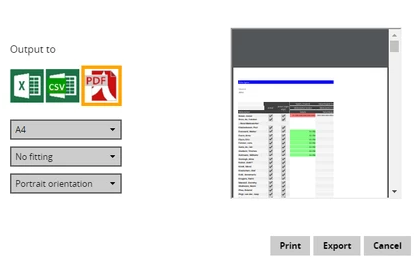
When choosing to export a PDF file, several options will appear, as shown in the image above.
First, the desired paper size can be selected, where you can choose between A4 or A3 format.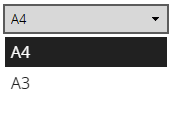
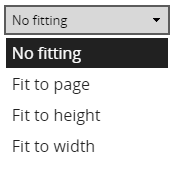
Then you can choose to adapt the format of the image to the page (both the height and width). There is also a possibility to adapt only the height or only the width to the page. Another possibility is to select the option where no adjustments are made. These options will scale the table or graph such that they will fit in your preference.
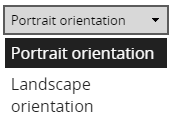
Lastly, you have the option to select landscape orientation or portrait orientation.
At the right side of the dialog, if possible, an example of the exported page is shown. When the desired options are selected, you can press the 'Export' or 'Cancel' button.