It is possible for the user to manually enter data in some views. The way of entering the data differs per view. The different possibilities will be explained below.
Numbers
Numbers can directly be typed into a cell when that cell is editable (recognizable by a blue color). The application will automatically convert the entered values to the correct format, such as decimals, currencies and/or percentages.
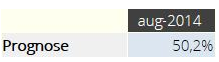
The image below is an example of an editable cell with the percentage format. After entering the number 50.2 the application automatically recognizes the point as a comma and displays the number as a percentage.
Booleans
A cell with a boolean, or yes/no value, is represented by a check box. These cells can take two or three different values depending on the view:
 |
True/Yes |
 |
False/No |
 |
Not available/Null |
When a specific boolean cell is selected, you can switch between the available values by using the space bar.
Relations
A cell containing a relation is shown as a text field with the following button: . These fields can be filled in two ways, namely by using the keyboard or by clicking on the relation icon.
Keyboard: By typing in the relation value (or part of it) in the text field, a list will appear with all the relation options that contain this text. Choose from this list by clicking on the desired name.
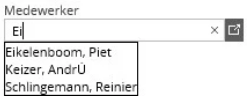
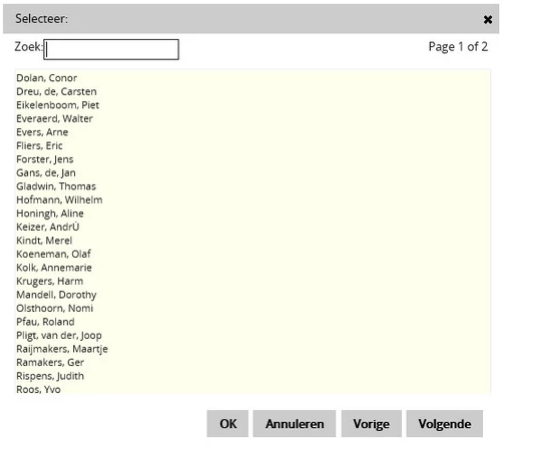
Relation icon: When clicking on the icon that appears in the text field () a list opens. The user can select the desired relationship from this list.
Dates (calendar)
Some cells in Anago have a date format. This can be in regular cells, but also in relation cells. In both cases, the desired value can be selected by directly typing into the cell, or by using the button .
Since release 065, cells with dates can be displayed in two different ways. In some cases, a list of dates will appear to be chosen from, in the same way as described above under 'relations'. In most cases, however, a calendar will appear, within which the correct date can be selected. This calendar looks like this:
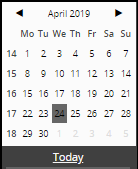
Since release 065, cells with dates can be displayed in two different ways. In some cases, a list of dates will appear to be chosen from, in the same way as described above under 'relations'. In most cases, however, a calendar will appear, within which the correct date can be selected. This calendar looks like this: .
.
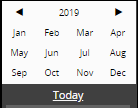
ubsequently, all months of the current year will be shown. When this bar is clicked again, an overview of 12 consecutive years is shown.
When the year and month are selected, a week can be selected by clicking on the relevant week number, a day can be selected by clicking on the relevant date. It may be that there is already a pre-selection on the selectable data.
The image below is an example where only the months of a year can be selected.
A search bar is located at the bottom of the calendar view. A specific date can be searched for in this search bar, or a time concept can be entered that will be searched for. Examples of timeframes that can be entered are: 'today', 'tomorrow', 'yesterday', '1week', '2weeks' and 'monday' (or any other day of the week).
Text
Text can be entered into editable (blue colored) cells as a text consisting of one or more lines of text.
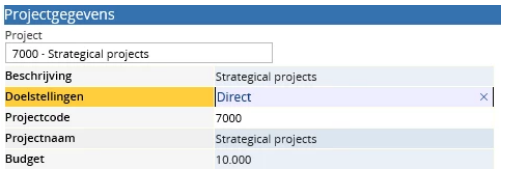
In the first case, the user can click in the text field to enter text. To confirm the typed text the user can press the enter key, the tab key, or one of the arrows. The user can also click in a different cell to confirm the typed text. To cancel the typed text, the escape key can be used inside the cell. To remove the entered text, the cell can be selected, after which the delete or escape key can be used. In the image below, the cell is typed at the top right.
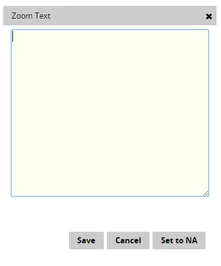
In the second case: When the -icon is clicked, the textbox 'Zoom text' opens, in which the desired text can be typed. Then click on 'Save' to save the typed text. To adjust the content of a cell you can double click in that cell.