There are some specific options within views that contain a report. These options will be described and explained below.
Flexible reports
A view with a report can contain a selection menu. These reports are called flexible reports.
When a view that contains a flexible report is opened, then first a selection wizard is opened. In the selection wizard a preselection can be made on one or more dimensions before they are shown in the view. For example, there is the possibility to select certain months, weeks or days within a year, or selecting a specific department within an organization.
If there is a hierarchy within a dimension, this dimension can be shown as a full list of all the items, or per dimension item. In the example below, the list of employees is shown per department.
By clicking on the arrows  in front of the departments a list with all the underlying employees will be unfolded. To select employees, you have to toggle the box in front of the employee. To select an entire department, you have to toggle the box in front of the department (instead of the box in front of the employee). All the underlying items will then be selected automatically.
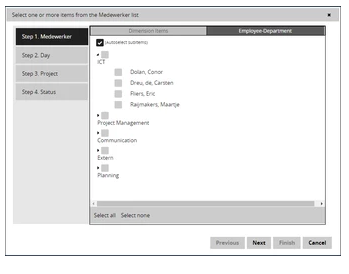
It is also possible to search in the list of items. Type the desired item in the search bar, and click 'Search'. The searched item will then appear, if present. With the 'Select all' and 'Select none' buttons you can select all items in the list or remove them from the selection at once.
When the desired items are selected, you can choose 'previous' or 'next'. In the latter case the wizard goes to the next selection step, until all the steps have been completed and you can click on 'Finish'. The desired report will then be shown.
Saving reports
In some views you have the option to save reports as personal reports or as shared reports.
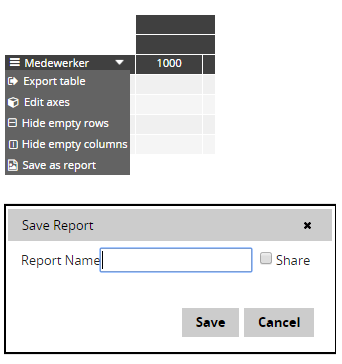
When this option is present in the menu bar of the relevant table and the 'Save as report' button is clicked, the following dialog box opens:
There are two types of reports:
-
My reports
This is the standard option; enter your desired name of your report in the dialog and press the ‘save’ button.
-
Shared reports
When you select the option ‘Share’ in the above dialog, the report will be saved automatically as a shared report
These stored reports can then be found in the Application Menu.
When a report is saved, it does not record the current data at that time, but only the selected items. This means that changes in the regular views will be visible in the saved reports.