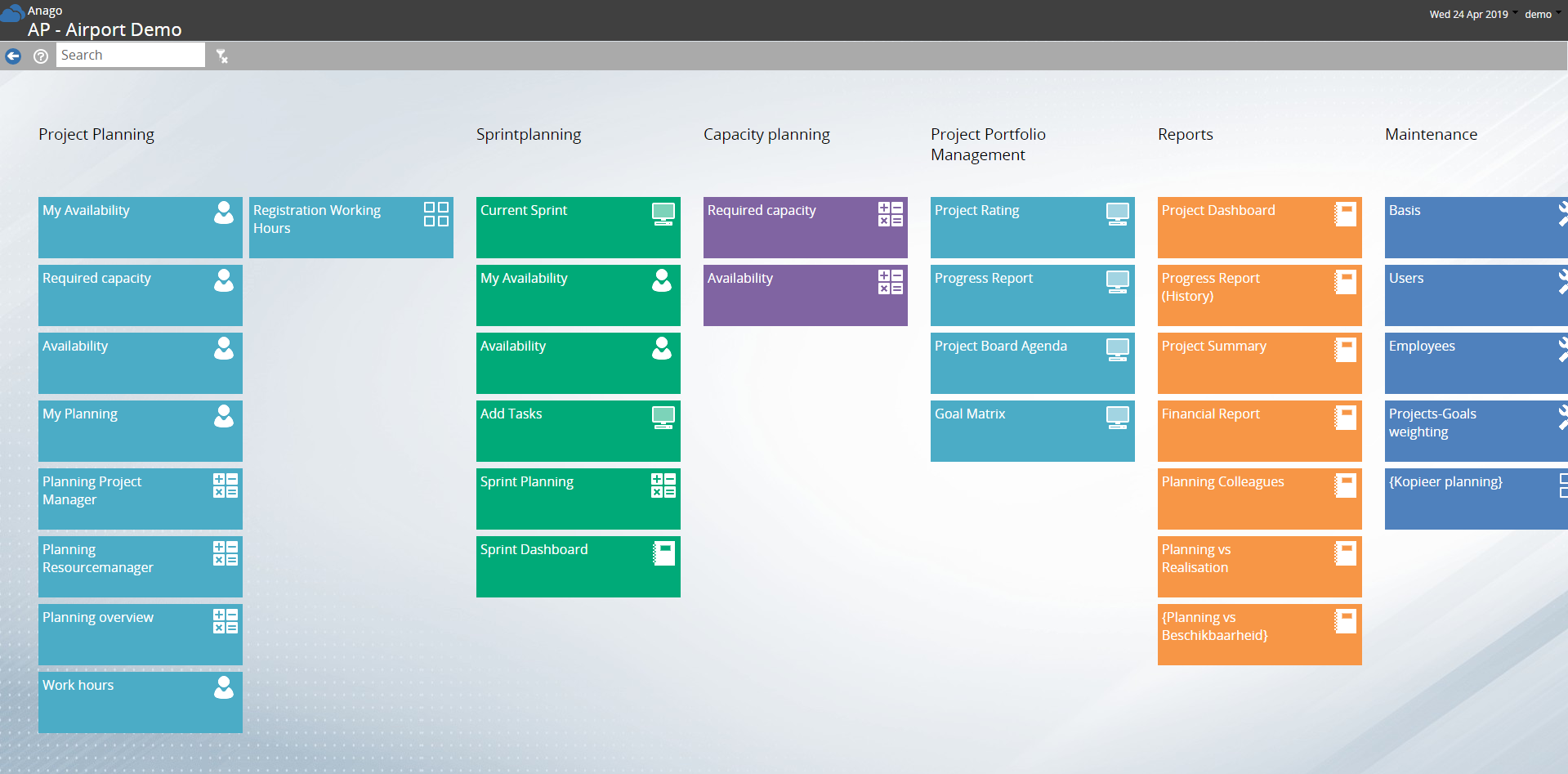
The Application Menu is the main screen within the application, in which the user has the possibility to open views and reports. The user only sees the parts of the process to which he is authorized. When a component of a process is clicked, a new view opens. When a component of the report type (Users or Shared Reports) is opened, the corresponding report is opened.
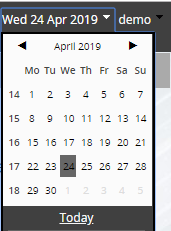
When the date at the top right of the screen is clicked, the calendar will appear. Within this calendar a specific date, week, month or year can be selected when you are in the application list or in the application menu. The time period selected in one of these screens will remain selected in all screens that are then opened.
Selecting a specific date is relevant in time-dependent views. In these views the displayed data depends on a certain time period that is selected in the calendar. This applies to many views, although not all views are time-dependent.
To select a time period, the months and years can be navigated by clicking on the arrows left and right of the current month / year. It is also possible to quickly navigate through the years and months by working at a higher level in the calendar. Click on the month / year bar for this;  . Subsequently, all months of the current year will be shown. When this bar is clicked again, an overview of 12 consecutive years is shown.
When the year and month are selected, a week can be selected by clicking on the relevant week number and a day can be selected by clicking on the relevant date.
A search bar is located at the bottom of the calendar view. With this search bar, a specific date can be searched for, or a time concept can be entered that will be searched for. Examples of time concepts that can be entered are: 'today', 'tomorrow', 'yesterday', '1week', '2weeks', '1 year' and 'Monday' (or any other day of the week).